Best Settings for Global Anarchy
Sensitivity, graphics, and audio tweaks that win more duels.
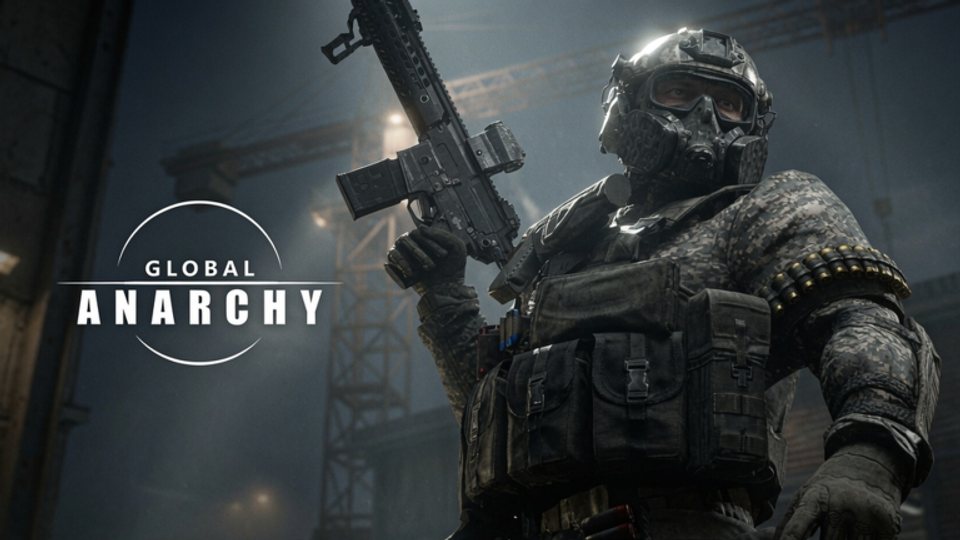
Global Anarchy feels like a different game once you stop fighting default settings. Most Roblox FPS titles ship with conservative graphics, imprecise sensitivity, and audio mixes that bury footsteps under gunfire. This guide walks through every meaningful setting so your hardware stops costing you gunfights.
Why settings matter more in Early Access
Early Access builds can reset or relocate options between patches. A setting you locked last week may have moved to a submenu or reverted silently. After every Roblox update timestamp listed on the updates hub, re-open settings once even if you think nothing changed.
Sensitivity fundamentals
Start with horizontal look speed at roughly 40-50 percent on the Roblox slider. Vertical can sit slightly lower if you over-flick to head level, or slightly higher if you consistently under-aim above chest height. Change one slider at a time and test across three full matches — empty server flicking does not simulate real gunfight pressure.
Finding your sensitivity sweet spot
- Pick a reference point on a wall at medium distance.
- Strafe left and right while keeping crosshair on that point.
- If you overshoot constantly, lower horizontal by five percent.
- If you lag behind targets, raise it by five percent.
- Play two matches with each change before adjusting again.
Sensitivity journaling prevents tilt-changes. Write your current numbers in a note app. If you tweak sliders mid-session, restore them before the next day. Consistency beats novelty — your muscle memory needs repetition, not constant resets.
Aim and crosshair settings
Keep the crosshair at chest-to-head height along common lines described in combat tips. If the game offers crosshair customization, choose a color that contrasts with most map surfaces — green or cyan works on suburbs-style brown and grey tones. Avoid ultra-thin lines that vanish on bright backgrounds.
ADS sensitivity
If Global Anarchy offers separate ADS sensitivity, set it lower than hipfire — typically 60-80 percent of your hipfire value. Precision at range matters more than flick speed when you are scoped. Test on the longest lane you regularly walk from maps.
Graphics optimization
Roblox graphics settings directly affect frame rate, which directly affects aim consistency.
Performance-first configuration
- Graphics mode: Manual, not automatic — automatic scales unpredictably during fights.
- Graphics quality: 3-5 on a scale of 10. Lower values expose player models more clearly against simplified backgrounds.
- Fullscreen: Always play in fullscreen, not windowed. Windowed mode adds input latency on most systems.
- Frame rate: If Roblox unlocks FPS on your client, cap at your monitor refresh rate or slightly below to reduce tearing.
Visibility advantages
Lower graphics settings remove particle clutter, reduce foliage density, and simplify lighting. In a twelve-player lobby where every death matters, seeing an enemy model against a clean wall beats admiring shadow quality. This is not cheating — it is a standard competitive practice across FPS titles.
Audio settings
Audio in Global Anarchy carries footstep cues, reload sounds, grenade pins, and killstreak callouts. Default audio mixes often prioritize ambient music and gunfire volume over positional information.
Recommended audio adjustments
- Lower music volume to 10-20 percent or mute it entirely during competitive sessions.
- Keep sound effects at 80-100 percent.
- If the game offers a headphone or 3D audio mode, enable it.
- Use stereo headphones, not speakers. Directional audio from headphones gives faster reaction times in interior fights covered in maps.
Sound cue priorities
Learn to hear: footsteps approaching doorframes, grenade pins before detonation, reload sounds from nearby enemies, and killstreak activation tones. Those audio signals win more duels than any optic attachment from weapon progression.
Movement and keybind optimization
Confirm all binds on the controls guide. Beyond default binds, consider these adjustments:
- Sprint toggle vs hold: Toggle sprint frees your pinky but adds a cancel step before shooting. Hold sprint is more responsive for players who pre-aim corners.
- Crouch bind: Ctrl or C — whichever lets you crouch-spam without lifting from WASD. Some players bind crouch to a mouse side button.
- Grenade key: G or Q — pick the one you can reach without leaving movement keys. Lethal grenade timing from combat tips depends on fast access.
Mobile and touch settings
Touch players face different trade-offs:
- Look sensitivity: Start low (20-30 percent) and raise gradually after you can track one suburban lane without overshooting.
- UI scale: Ensure killstreak buttons and weapon swap icons are large enough to tap under pressure but do not block sightlines.
- Gyroscope: If available, enable for micro-adjustments during ADS. Gyro helps more with tracking than flicking.
- Auto-fire: Use cautiously — it changes timing and can waste ammo on partial exposures.
Controller notes
If Global Anarchy supports controllers on your device, verify by checking for controller prompts in menus. Do not assume full parity with PC inputs. Set dead zones low enough for precise aim but high enough to avoid drift.
Settings and loadout synergy
Settings and loadouts work together. A long-range optic from the weapons tier list needs lower ADS sensitivity to be useful. An SMG rush build from best loadouts benefits from higher hipfire sensitivity for snap-targeting interiors. Match your settings to your primary role using the loadout planner.
Fair play
No settings optimization requires third-party software. Global Anarchy warns that unauthorized tools — including Bloxstrap — can trigger permanent bans. Details in scripts safety and risks. Stick to in-game options and Roblox client settings.
Patch-day settings checklist
After each update on the updates hub:
- Re-confirm graphics mode is still Manual.
- Check that sensitivity sliders did not reset.
- Verify fullscreen is still active.
- Test one audio cue — can you hear footsteps from ten meters?
- Confirm your crosshair color did not change with a lighting update.
Five checks, thirty seconds. Do them before your first competitive match of the day.
Settings for different playstyles
- Entry SMG players: Higher hipfire sensitivity, lower graphics for visibility, max sound effects.
- AR mid anchors: Balanced sensitivity, medium graphics for lane clarity, music muted.
- Marksman grinders: Lower sensitivity for precision, medium-high graphics for long-lane visibility, headphone audio mode.
Adjust settings per role, not per mood. Your perks and killstreaks change with loadouts — your settings should shift with them.
Final optimization mindset
Settings are a tool, not a crutch. The best sensitivity in the world does not fix poor positioning from maps or bad timing from combat tips. Lock your settings, play twenty matches, then evaluate whether changes are needed based on death patterns — not on one bad round.
Optimize once, practice often, and let the arcade gunplay speak.
Frequently Asked Questions
Quick answers for Global Anarchy players.
What sensitivity should I use in Global Anarchy?
Start at 40-50 percent horizontal, adjust after three full matches. See our sensitivity sweet spot method.
Does lower graphics give an advantage?
Lower settings reduce visual clutter and can make player models easier to spot. It is standard competitive practice.
Should I mute music?
Lower or mute music during competitive sessions so footstep and reload cues are clearer.
Do settings reset after patches?
Early Access updates can reset or move settings. Re-open the settings menu after every patch.
Can I use a controller?
Only if the experience shows controller prompts in your session. Verify before committing to controller binds.